Authorise internal work without a provider
Authorise a mission for internal work only. External provider calls are refused.
On this page
Start a new mission
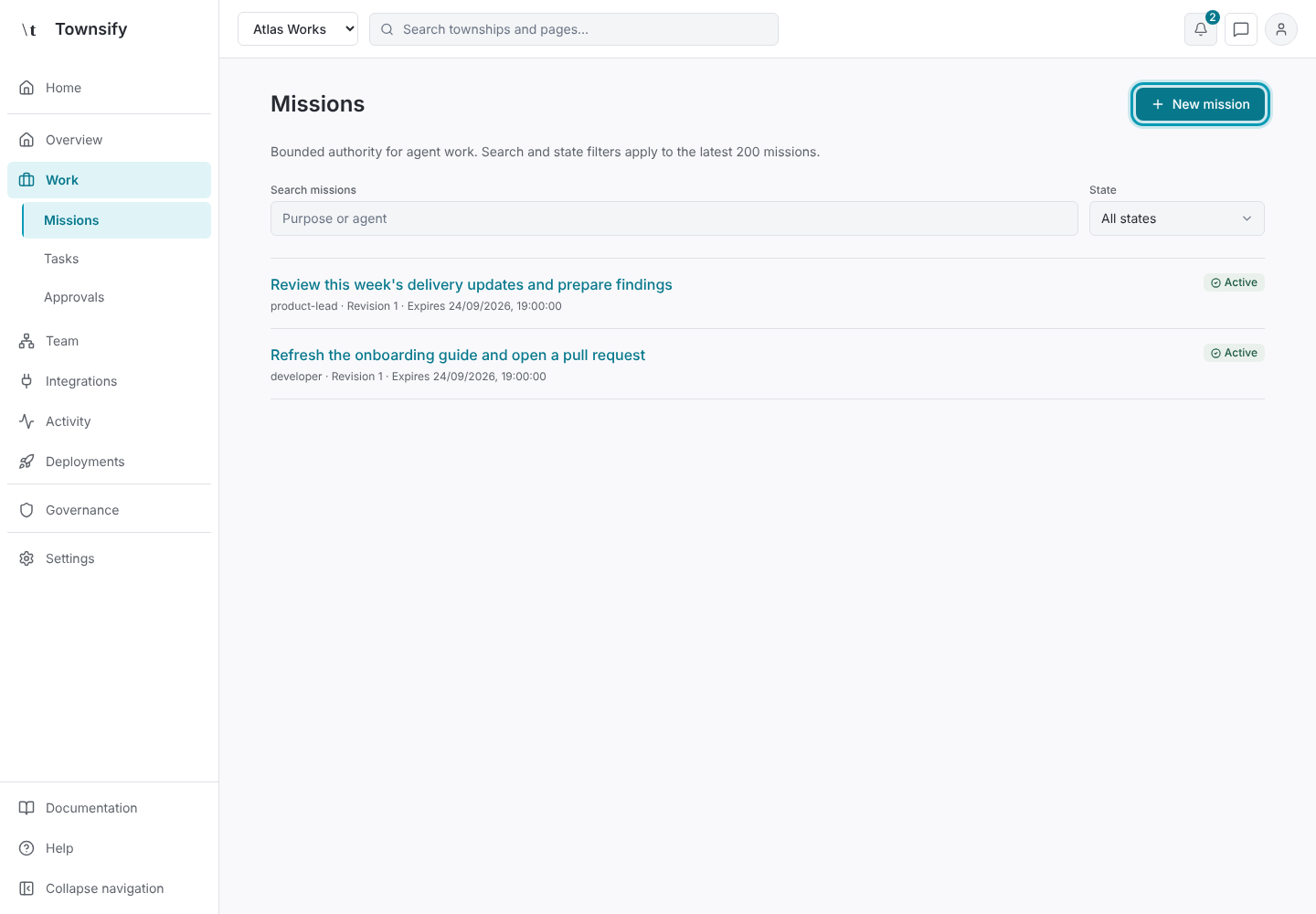
Open Work → Missions and select New mission.
Illustrative dataMissions, with New mission outlined. Set the purpose and agent
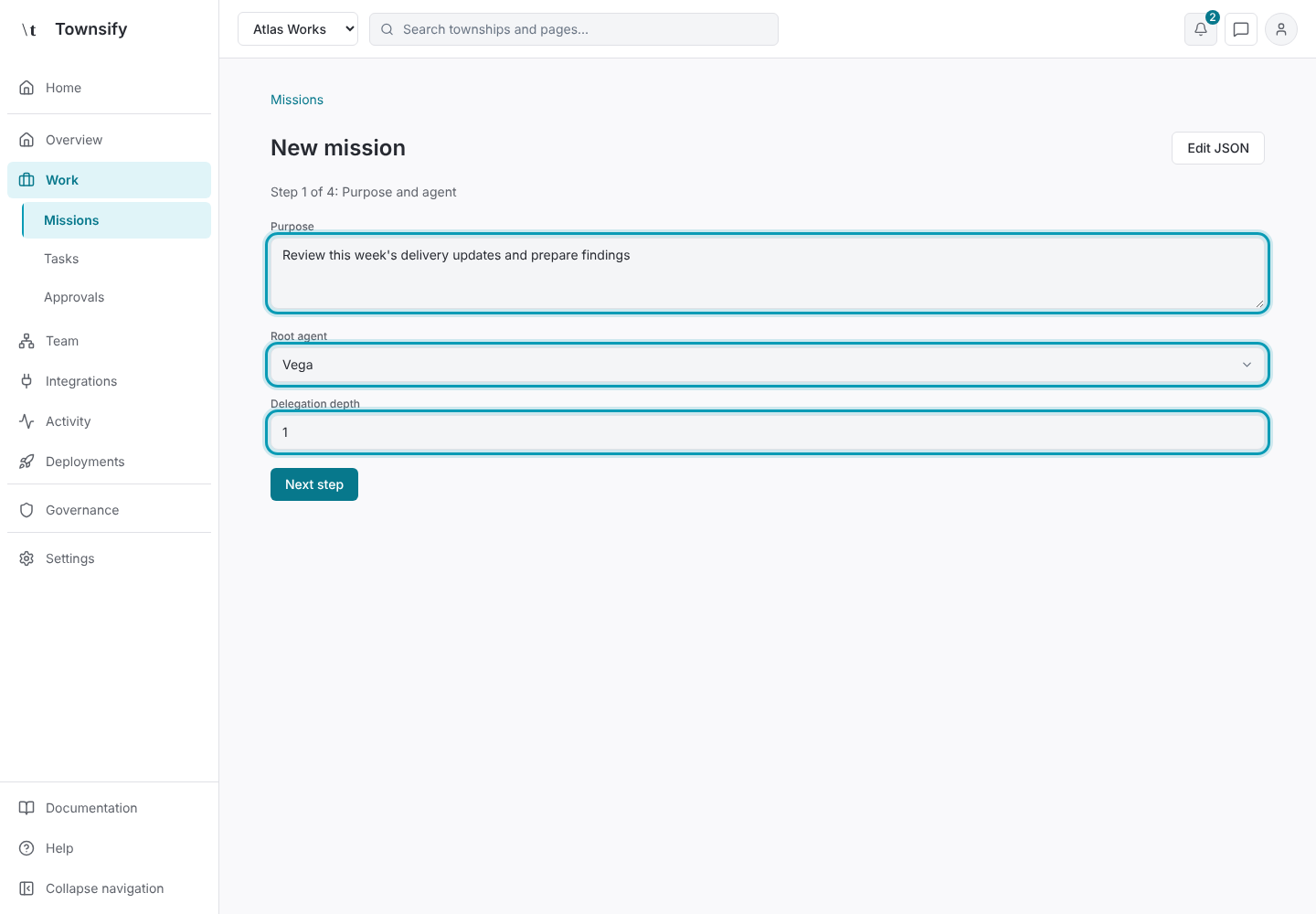
Describe the purpose and choose an existing root agent. Set the permitted delegation depth.
Illustrative dataPurpose, root agent and delegation depth. Leave external operations empty
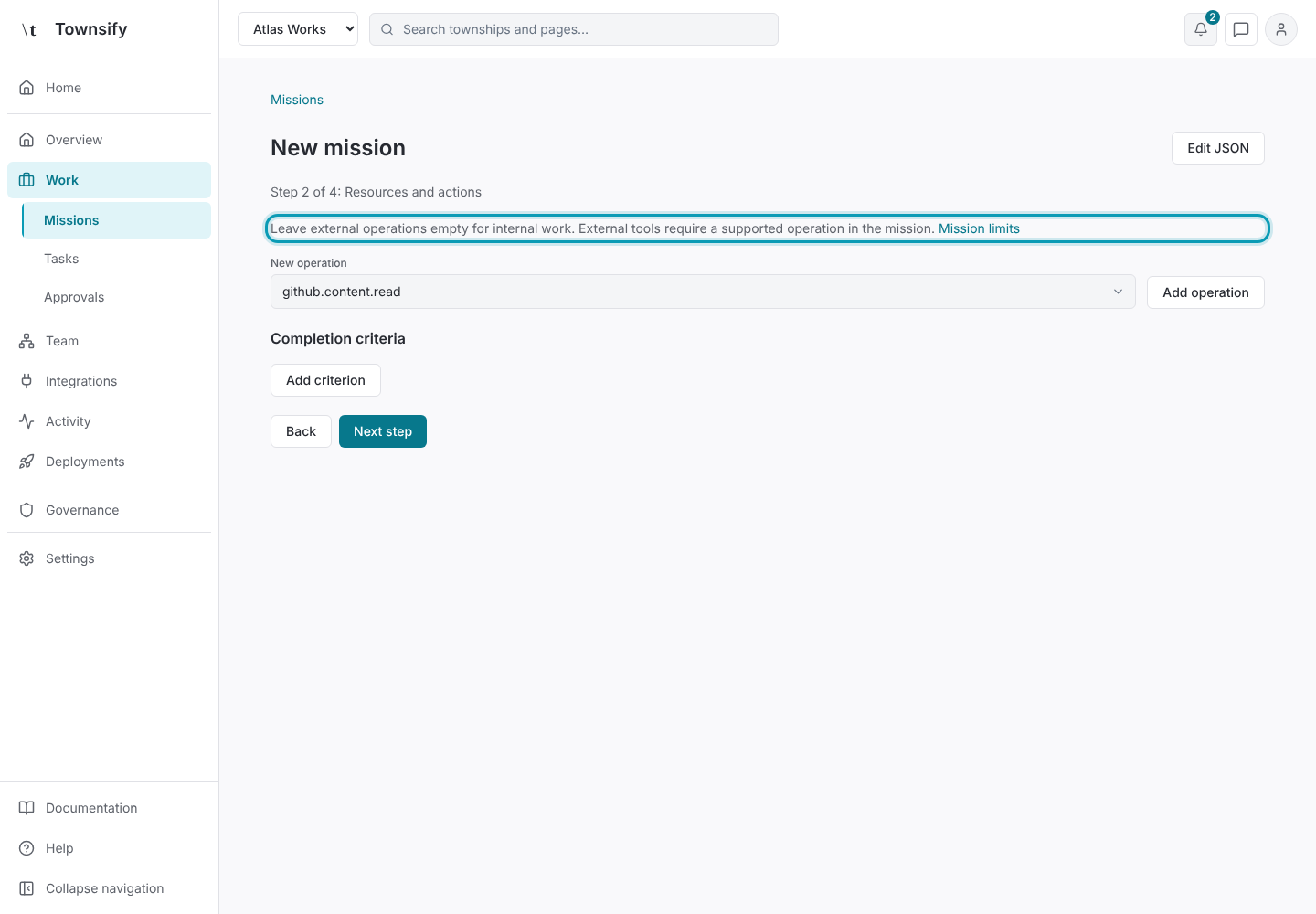
Leave external operations and provider completion criteria empty. This allows the mission's classified internal work while refusing external provider calls.
Illustrative dataThe note on leaving external operations empty. Set limits and expiry
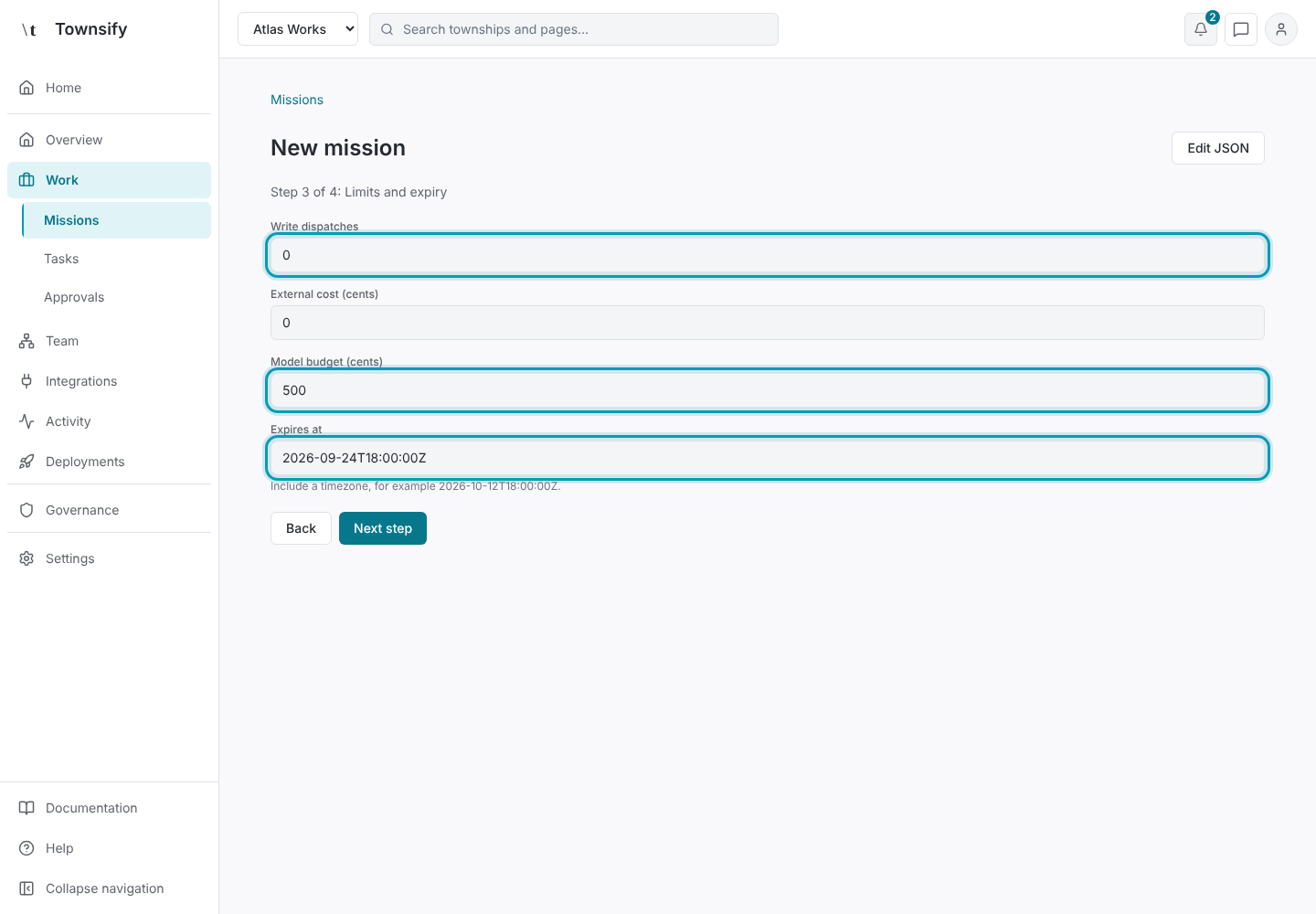
Set write dispatches to zero, choose the model allowance and set an expiry with a timezone. Review the complete draft and save it.
Illustrative dataWrite dispatches, model budget and expiry. Authorise the proposal
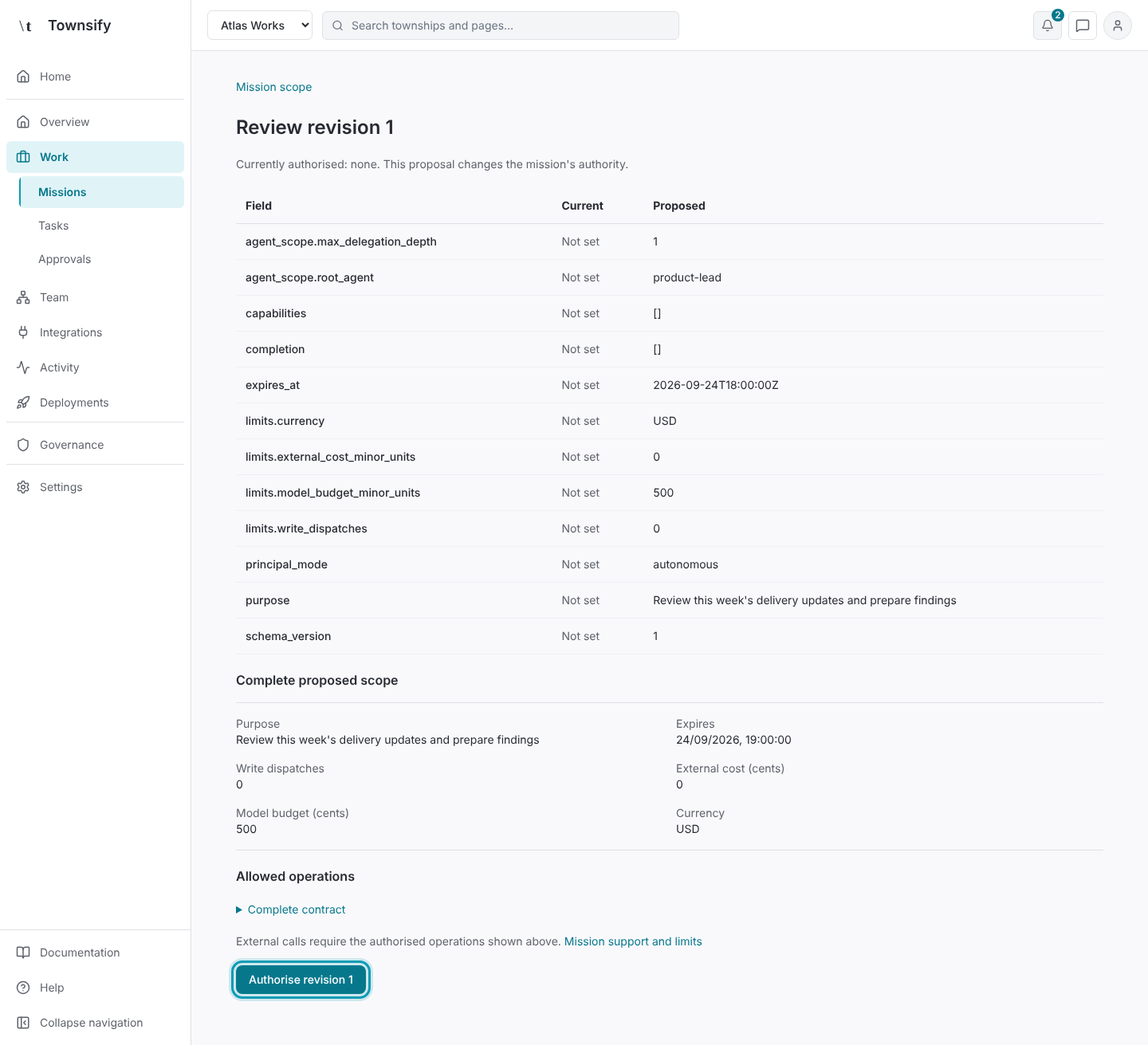
Have a reviewer with mission.authorize open the revision review and authorise the saved proposal.
Illustrative dataThe first revision's review, with Authorise revision 1 outlined. Start a task
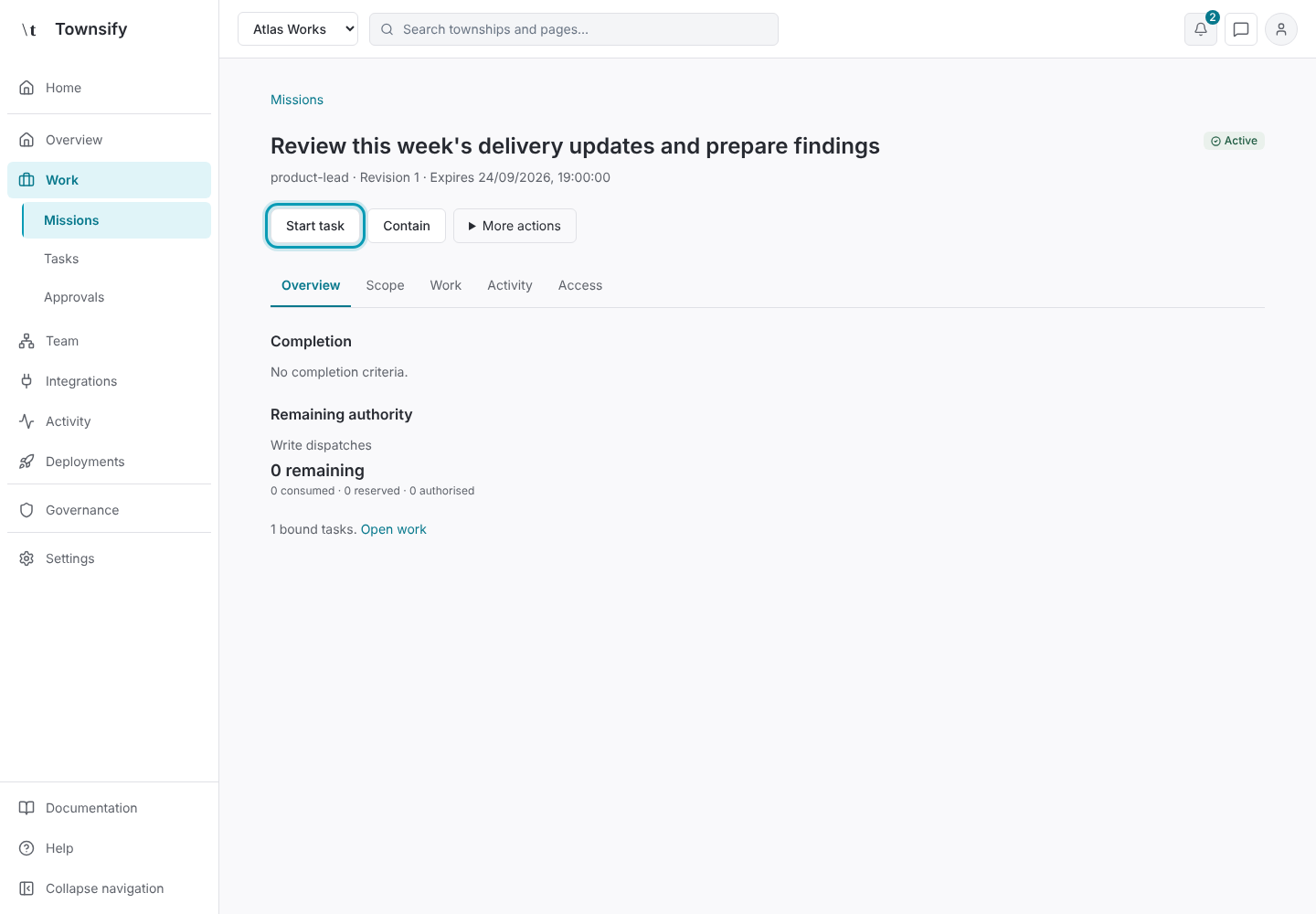
Select Start task from the mission. Read the resulting task journal and the mission's Activity records.
Illustrative dataThe authorised mission, with Start task outlined. End its authority
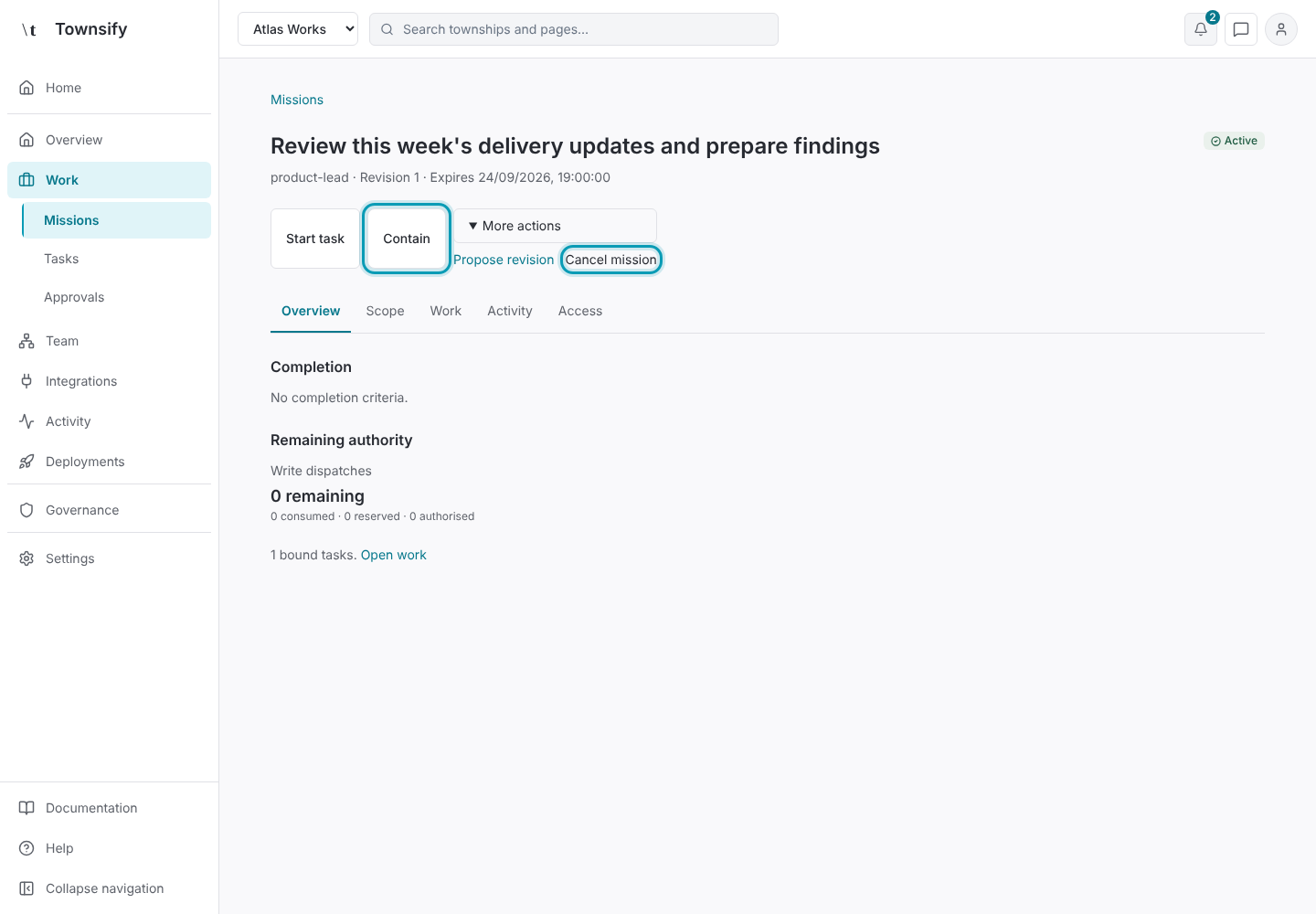
Contain or cancel the mission when its authority must end. Finishing the task does not automatically complete a mission with no provider completion criteria.
Illustrative dataContain and Cancel mission outlined.
Need more help?
Open Mysaria from the console header to ask about the page you're on, or send work to an agent in your township.