Give an agent access to a service
Connect a service, scope its resources where supported and grant an agent only the tools its work needs.
On this page
Choose the service
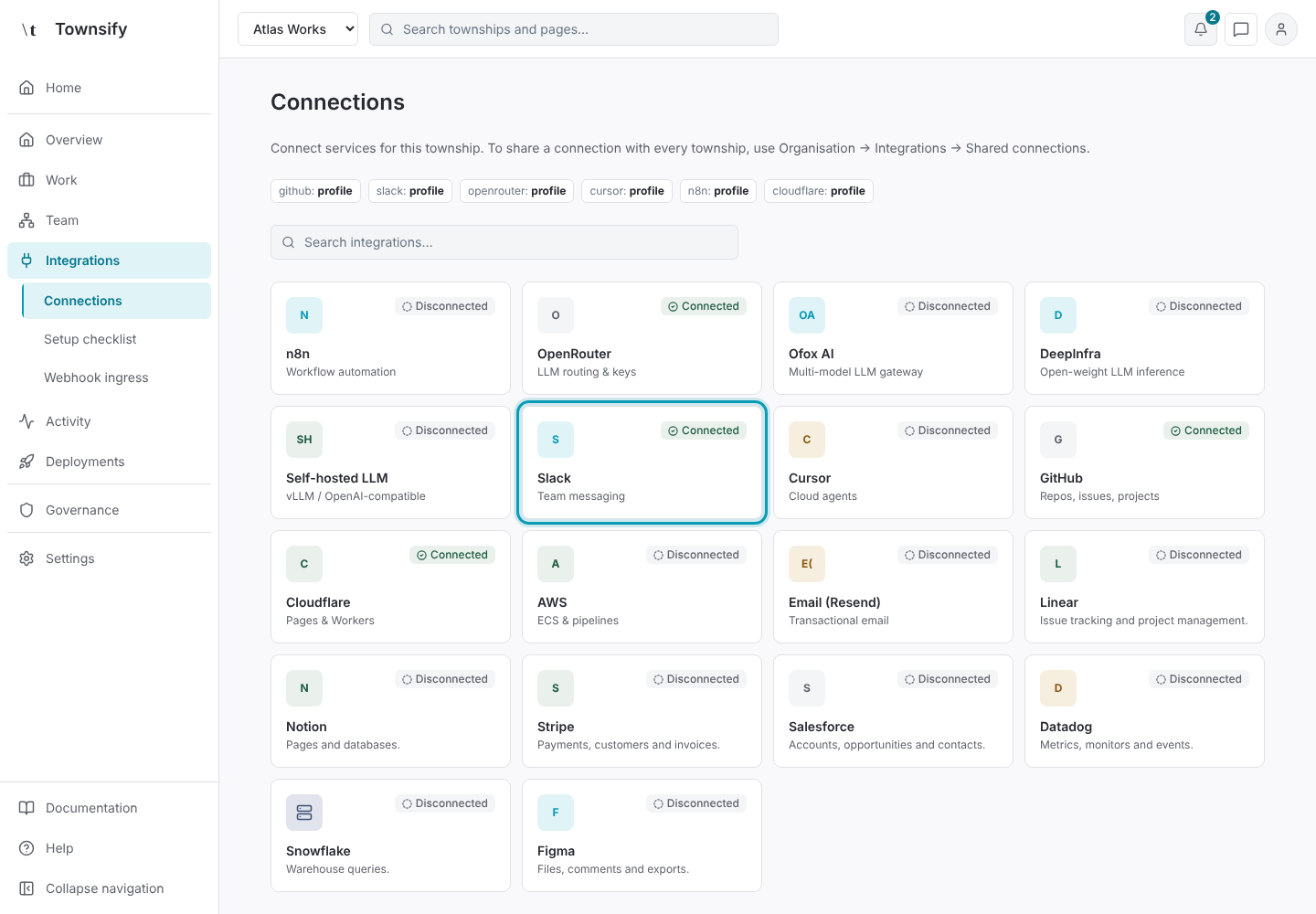
Open the township's Integrations → Connections and choose the service the work needs.
Illustrative dataConnections, with Slack outlined. Enter the credentials
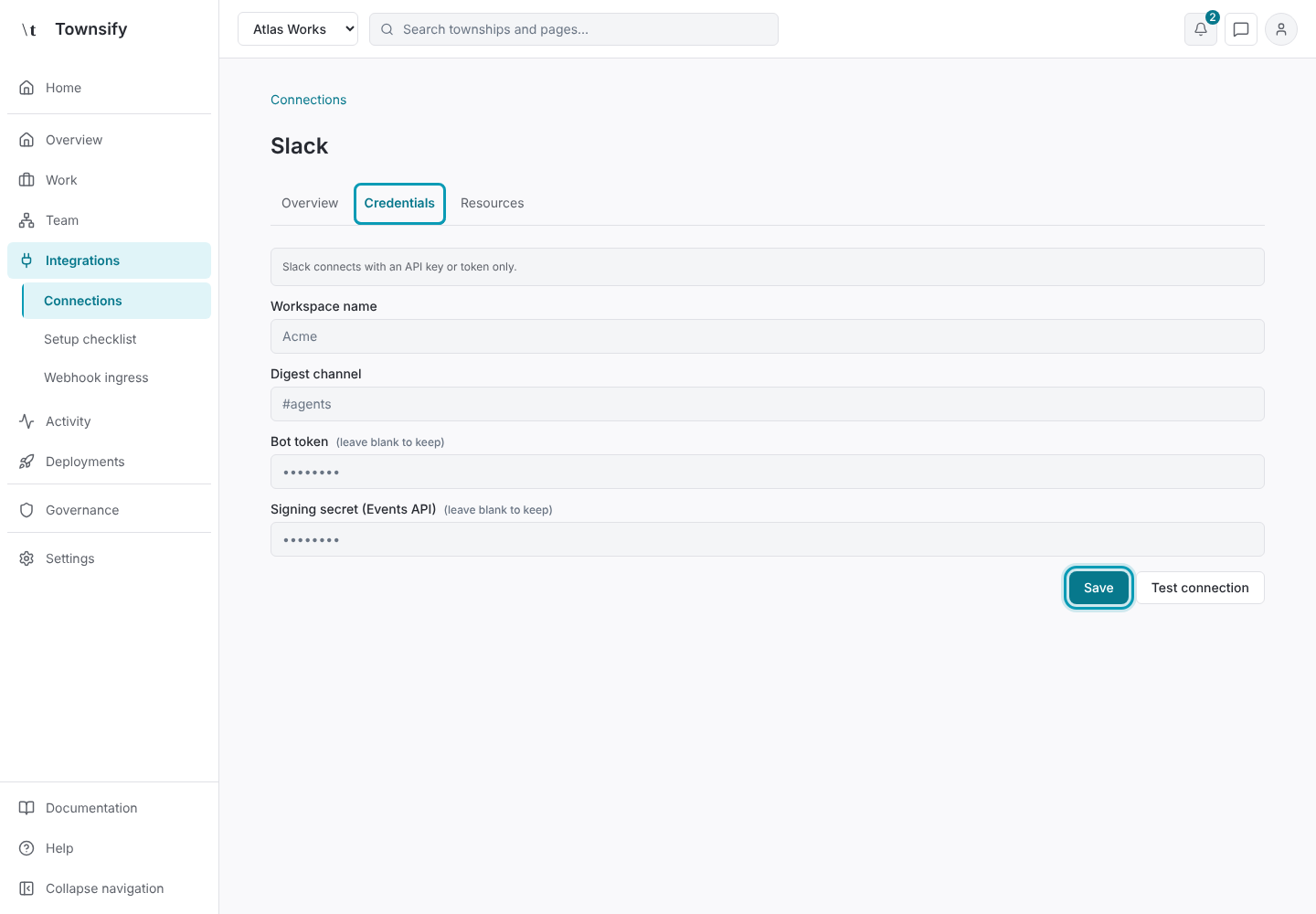
Open Credentials and enter that provider's required fields. Save the connection. Use Test connection when you have valid credentials and permission to contact the service.
Illustrative dataSlack credentials, with Save outlined. Limit the resources
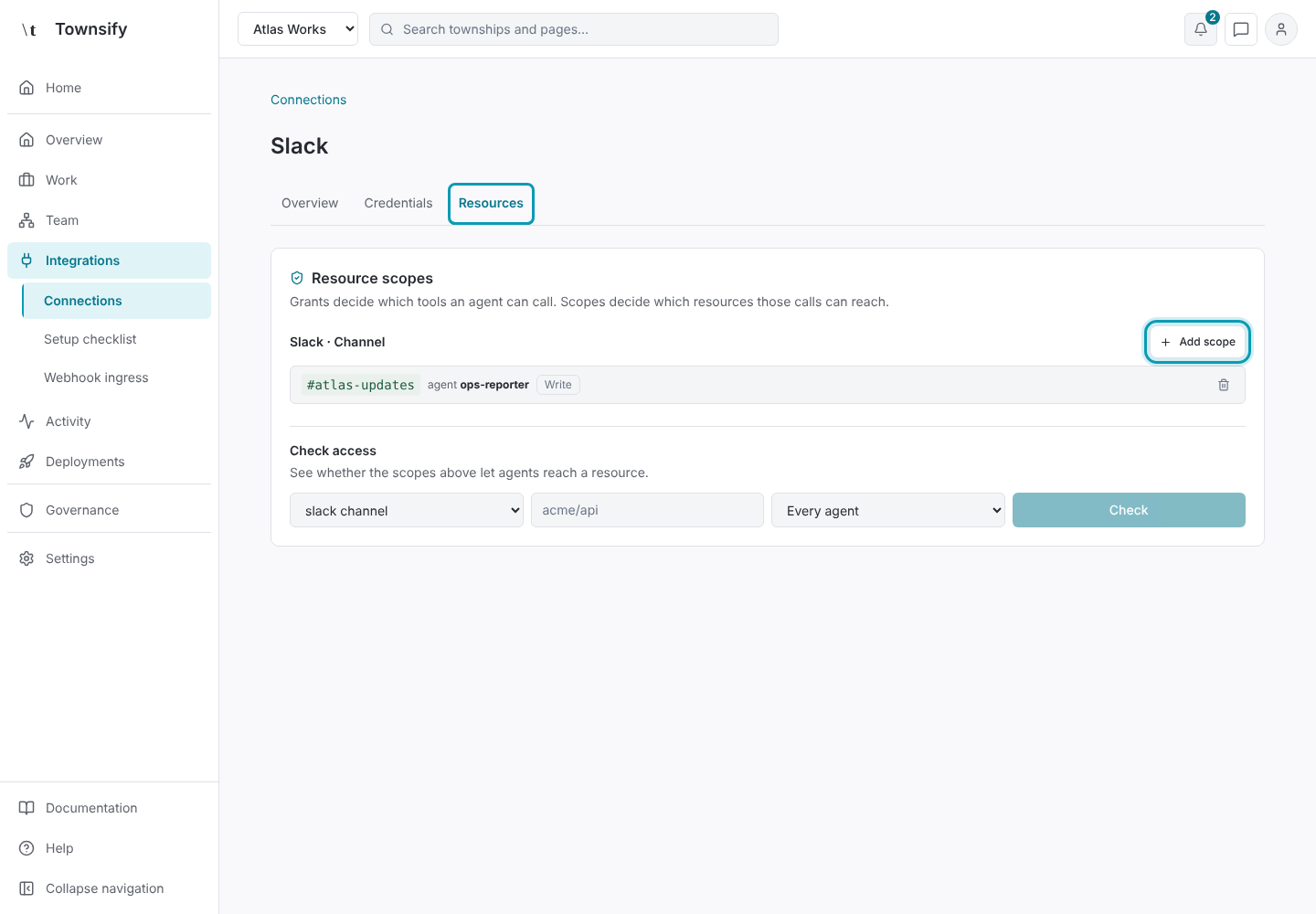
Open Resources and set the allowed resource scope where supported. A broad provider token does not justify a broad agent scope.
Illustrative dataSlack resource scopes, with Add scope outlined. Open the agent's tools
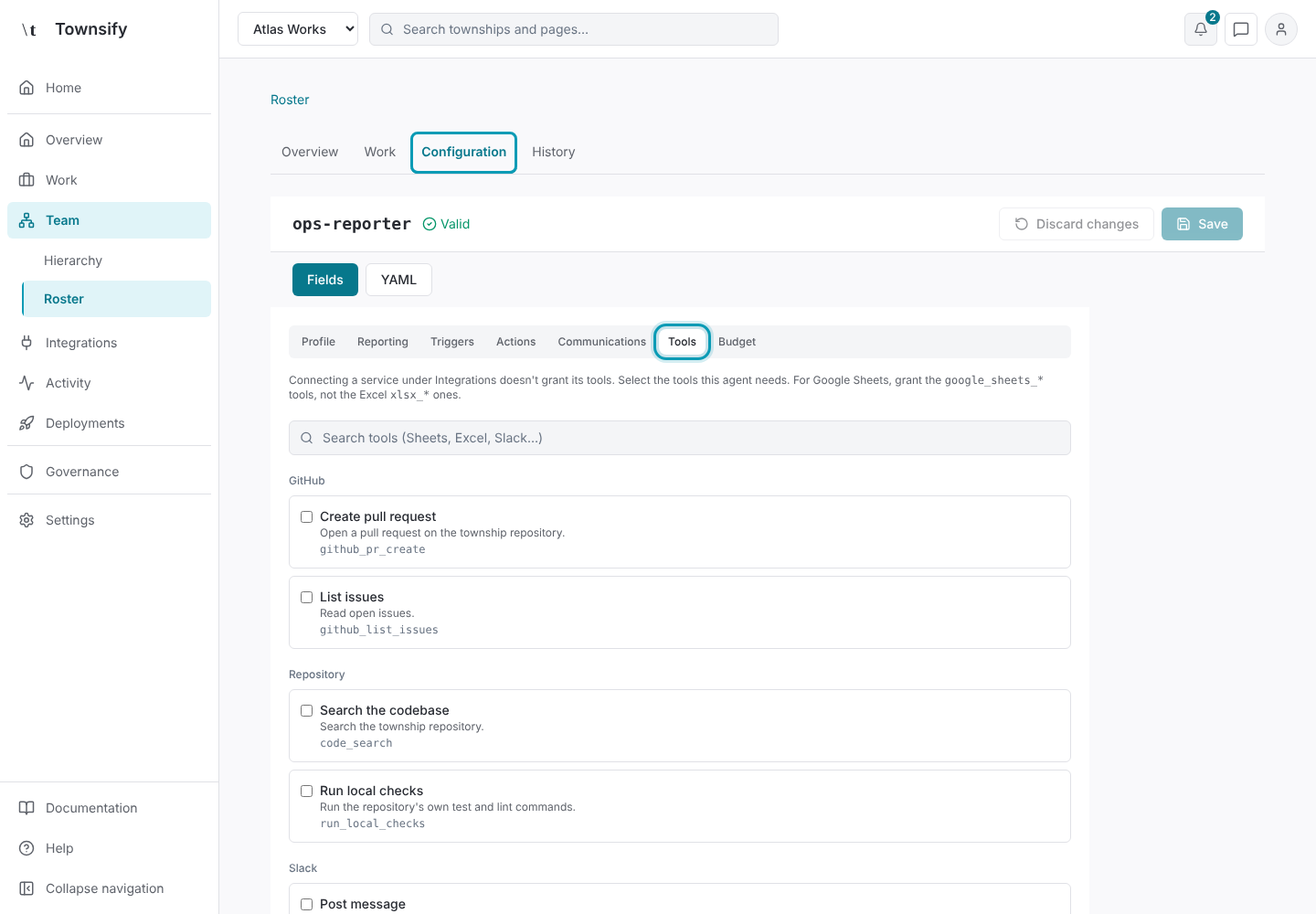
Open Team → Roster, select the agent and open Configuration → Tools.
Illustrative dataAn agent's configuration, open at Tools. Grant the tools
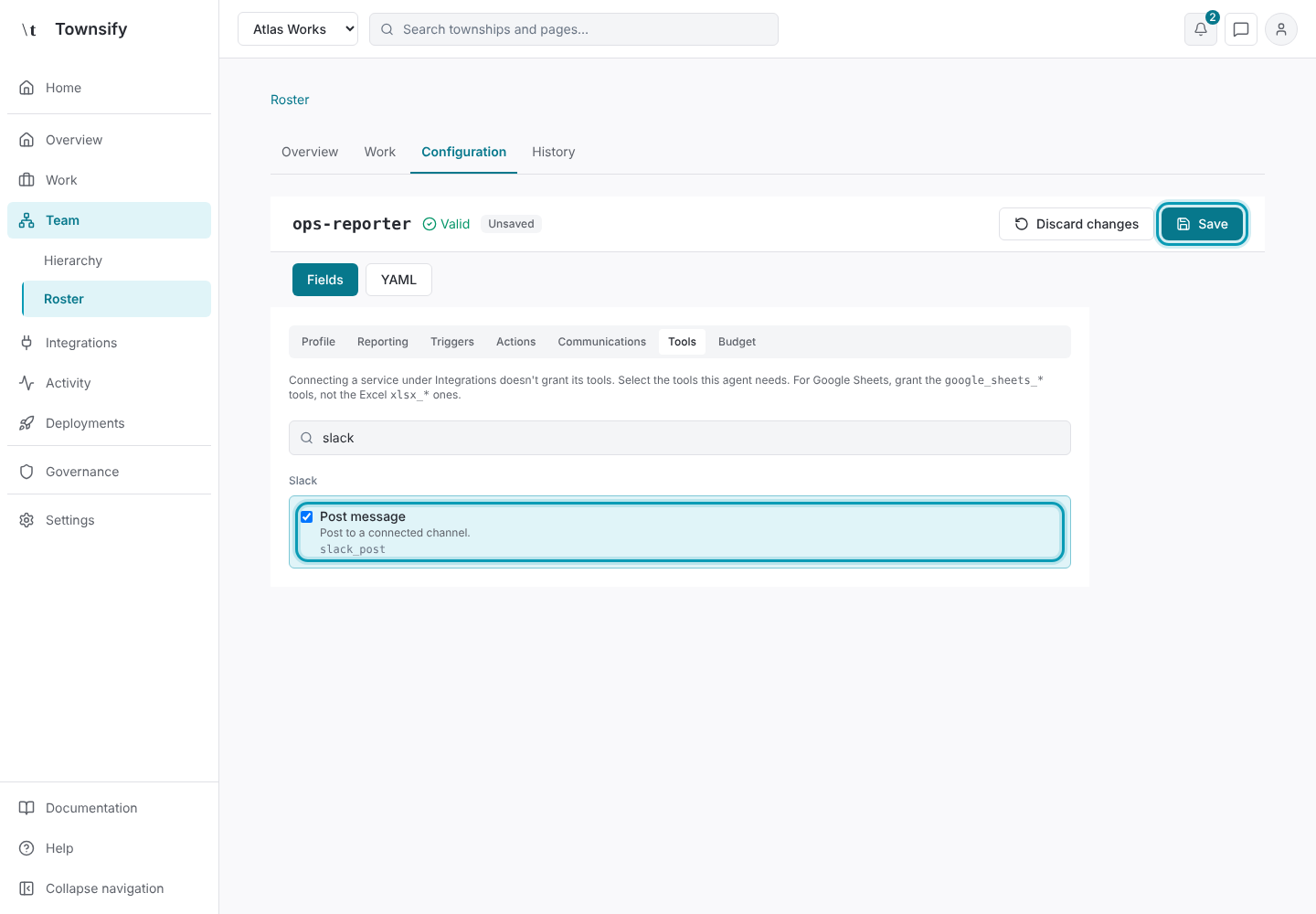
Grant the specific tools and permission level needed for the task. Save the definition and deploy the changed township when required.
Illustrative dataPost message granted, with Save outlined. Check mission support
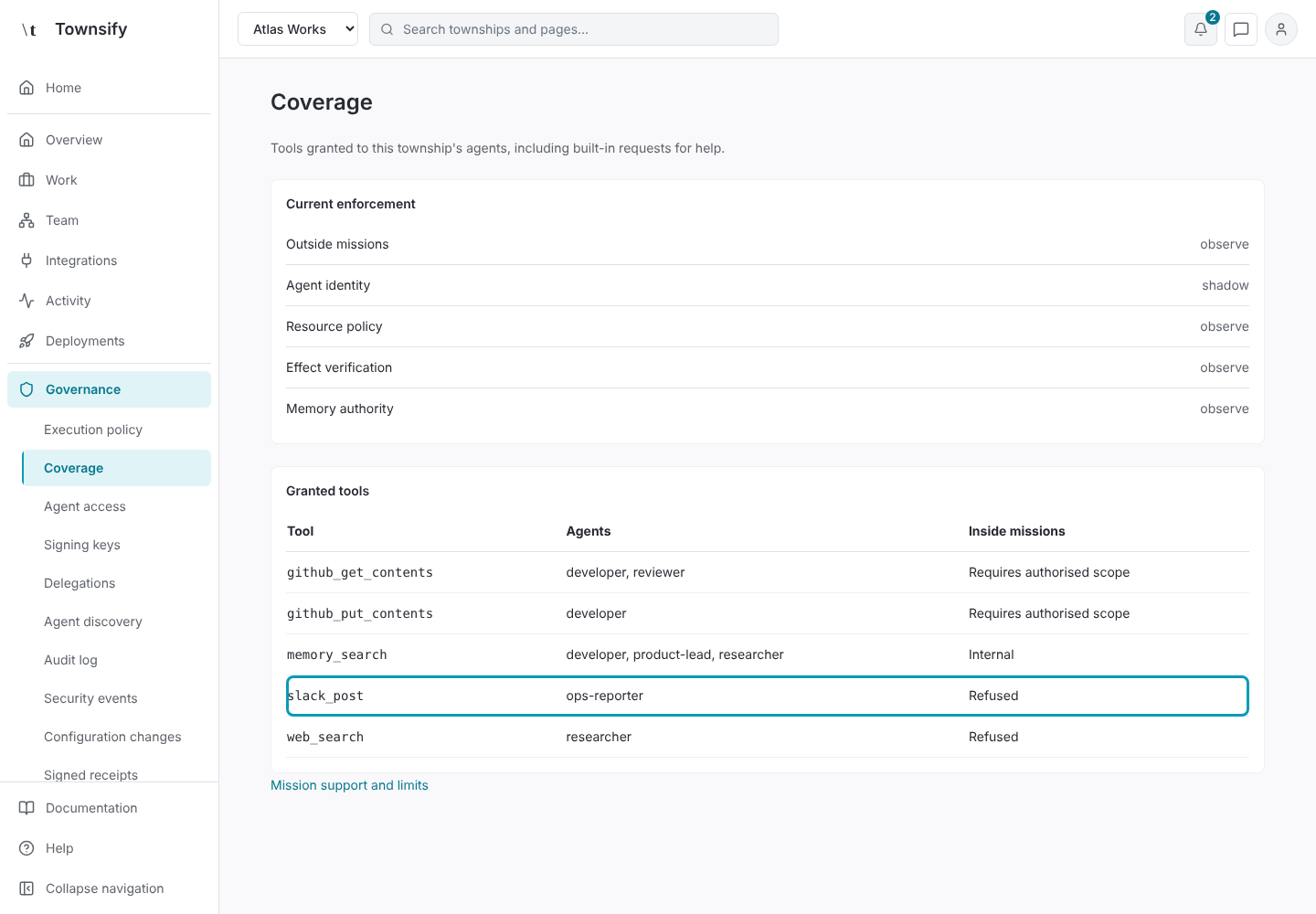
For mission-bound external work, check Coverage for the tool's support. Do not bind unsupported external calls to a mission and expect them to run.
Illustrative dataCoverage, showing slack_post refused inside missions. Inspect the first calls
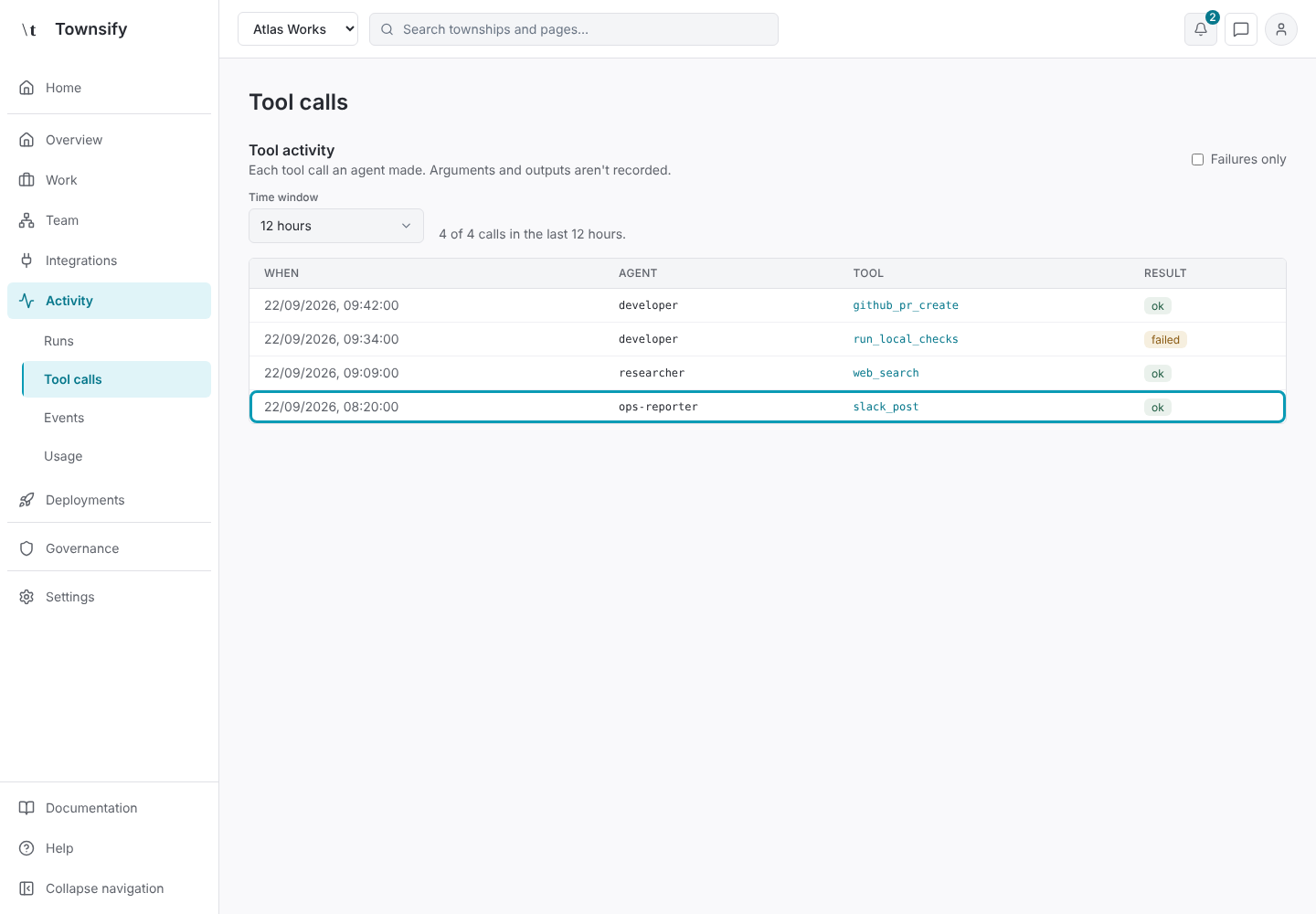
Inspect Tool calls and any effect evidence after the first controlled call. Check the provider when the outcome is uncertain.
Illustrative dataTool calls, with the slack_post call outlined.
Need more help?
Open Mysaria from the console header to ask about the page you're on, or send work to an agent in your township.